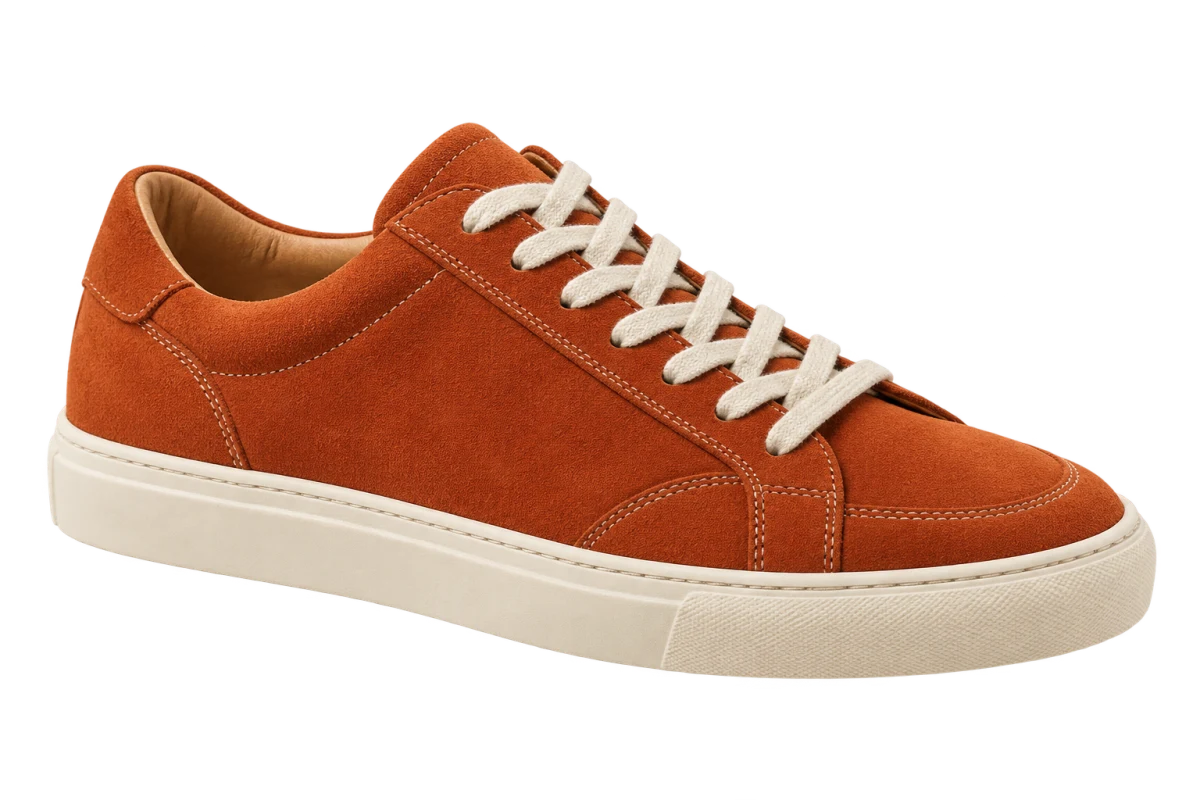
Test the image over a colored shape
Place the image over a strong color that does not appear in the subject, such as dark blue or bright pink. In a slide editor, add a colored rectangle, send it behind the image, and move the image partly over it. If the color appears around the subject, transparency is working. If you see a white rectangle, the file is opaque.
This test also reveals pale halos. A light fringe can come from semi-transparent edge pixels that were blended against the original background. It is easier to spot over a contrasting color than over the checkerboard.
White and transparent are different kinds of pixel
A white background is made of opaque white pixels. A transparent background has no visible color in those areas and lets whatever sits behind the image show through. On a white page, both can look identical. That is why judging the result by a browser tab or file thumbnail is unreliable.
Many editors show a checkerboard behind transparent pixels. But a picture of a checkerboard can also be saved inside a file. Move the image over another color: a genuine transparent area reveals that color; a baked-in pattern moves with the image.
Why PNG supports transparency but JPEG does not
PNG and WebP can store an alpha channel alongside color. The alpha value controls how visible each pixel is, from fully opaque to fully transparent, with partial values for soft edges. Those partial values matter around hair, rounded objects, and anti-aliased contours because they prevent a hard, jagged outline.
JPEG stores color but no alpha channel. Saving a cutout as JPEG therefore requires a real background color. If a JPEG looks white behind the subject, the white is baked into the file. Renaming it with a .png extension does not create transparency.
Choose the background for the destination
Keep transparency when the image will move between different layouts, sit over colored sections, or be reused later. Choose a solid background when the destination expects a finished rectangle, when file compatibility matters more than flexibility, or when the visual system requires the same background across every product image.
In ClickCutout, select PNG or WebP before copying or downloading to keep transparency. Select JPEG when you want a white or colored background. This setting affects copied images too, even though the clipboard image is always a PNG.