Identify the shadow
A contact shadow sits near the object’s base. A cast shadow extends across the scene. Shading on the product itself describes its shape and should not be mistaken for background.
Compare the original and the cutout. Automatic segmentation can keep, soften or remove parts of a shadow; do not assume a particular outcome for every photo. ClickCutout has no dedicated shadow-preservation control.
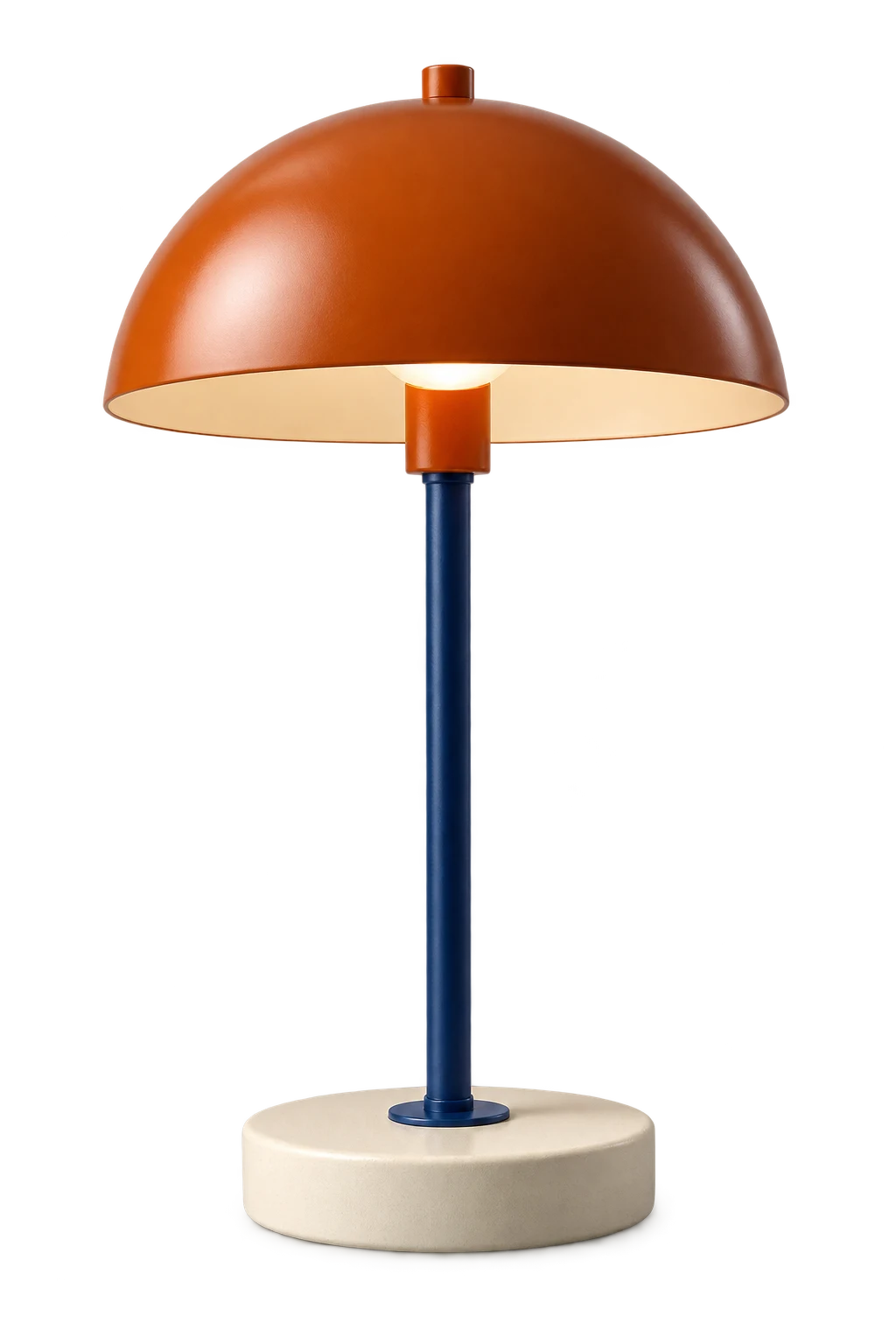
Compare one lamp on two layouts
Suppose you place a lamp on a plain product card and a colored promotional banner. Put the transparent PNG on both before choosing the final export.
On the product card, check whether the lamp’s base touches the same visual baseline as other items. On the banner, check whether the old desk shadow makes sense against the new color and light direction. A dark patch that cuts off abruptly is a reason to inspect the mask.
Make the decision in your editor
Keep a clean shadow when it suits the composition. Remove leftover background from it or rebuild a separate shadow layer when your editor supports that work. Keep the light direction and softness consistent across related images.
Do not paint out the product’s natural shading just to make the background white. Check the destination’s current image rules before exporting. Preserve a transparent master and make a separate finished copy so the shadow decision can change with the layout.
Prepare the cutout before judging the shadow
For an ordinary web image you can reuse, open the largest available version. Set up ClickCutout in desktop Chrome, sign in with Google and allow image access. Select PNG, right-click the source image and download the result. Insert it into your usual editor over the intended background. For a local photo, start with that editor’s selection or background-removal tool instead.
Keep the original next to the cutout while you compare the base of the lamp. If only part of a shadow survives, a sharp border may reveal where the mask ended. If dark pixels remain on the lamp itself, check whether they describe the product’s shape before erasing them. ClickCutout has no manual shadow brush or dedicated shadow-preservation control. Use an editor with mask and layer controls for that correction, then judge the result at the size customers will see.