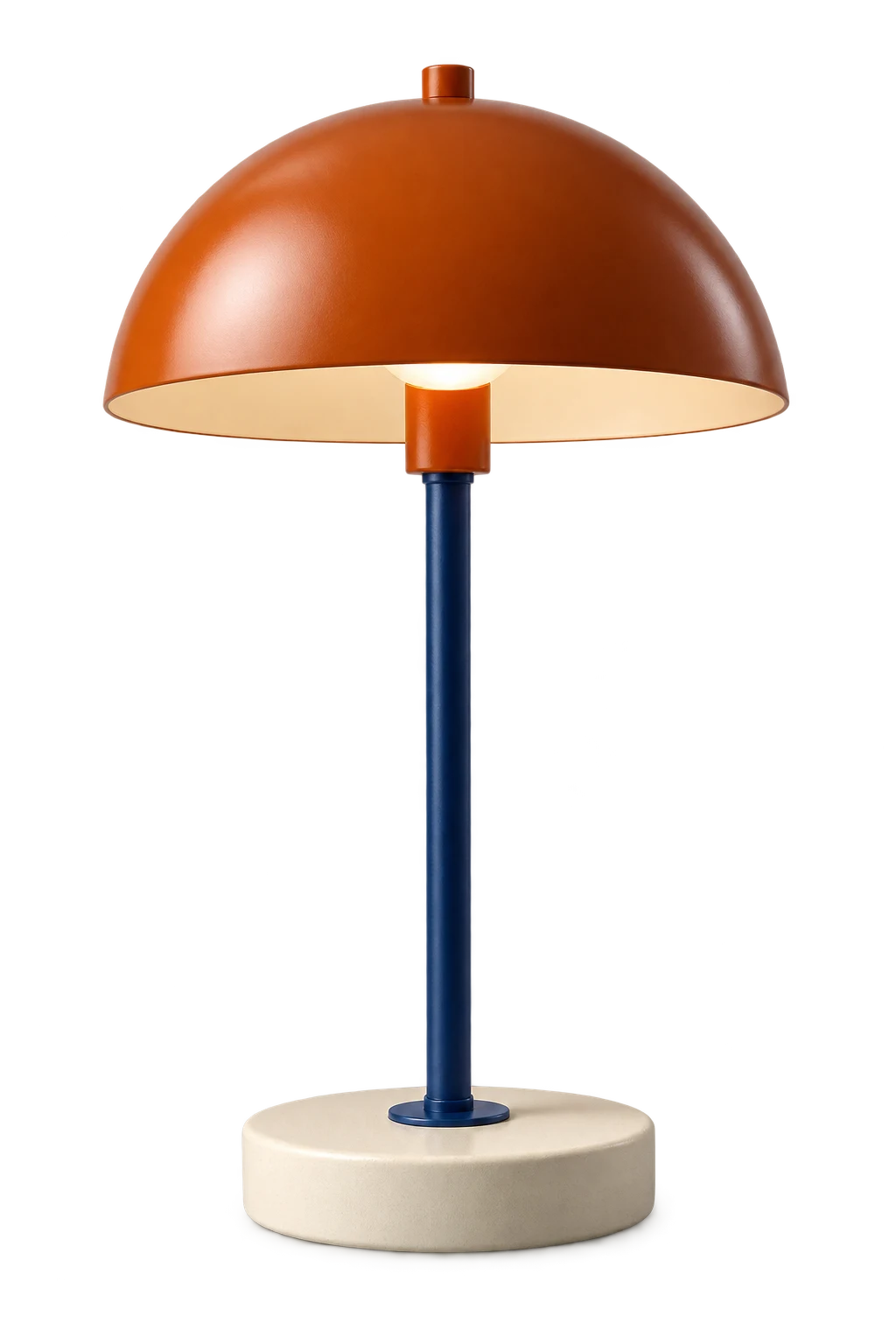
Start with the visible problem
A photograph has too much empty space around a lamp: crop the edges. The lamp is surrounded by a desk and wall: background removal isolates it. The lamp must fit a square card: create the square layout in your editor after choosing the subject.
A crop does not remove the wall between chair legs or inside a handle. Background removal does not automatically center the object or create matching margins.
Work through one product card
Take a permitted 1600 × 1200 web photo of a lamp. In ClickCutout, choose PNG and download the background-free result after setup. The output keeps the received dimensions, including empty transparent space.
In your editor, create the card dimensions your destination needs. Place the PNG, preserve its proportions and adjust its visible size. Leave room around the shade and align the base with other products. Export a separate delivery file; keep the transparent original.
For a photo already on your computer, use your editor’s selection or background-removal tools first.
Check before trimming
Do not crop away a strap, handle or loose hair that belongs to the subject. Removal cannot reconstruct parts missing from the source. Likewise, resizing a small thumbnail cannot restore fine texture.
Inspect the final card at its displayed size. If it is cramped, change the layout margins. If a white box remains, check transparency. Choose the next operation from the remaining problem rather than repeating background removal.
Use a repeatable order for the next product
Start by deciding the final card dimensions in your editor. Choose the source photo, remove the background if the scene is unwanted, then position the cutout and adjust the surrounding space. Check the subject’s full outline before making the final crop. If you cut off a handle first, the removal step cannot recover it.
Keep the transparent file separate from the finished card. A new banner may need a wider canvas or a different background, while the same cutout can remain useful. Compare two cards side by side at their actual display size: the products should have a deliberate scale and enough space for their outlines. Do not use equal file width as a substitute for checking the visible product size. ClickCutout does not crop, center products, resize or create a catalog grid; those choices stay in your editor.