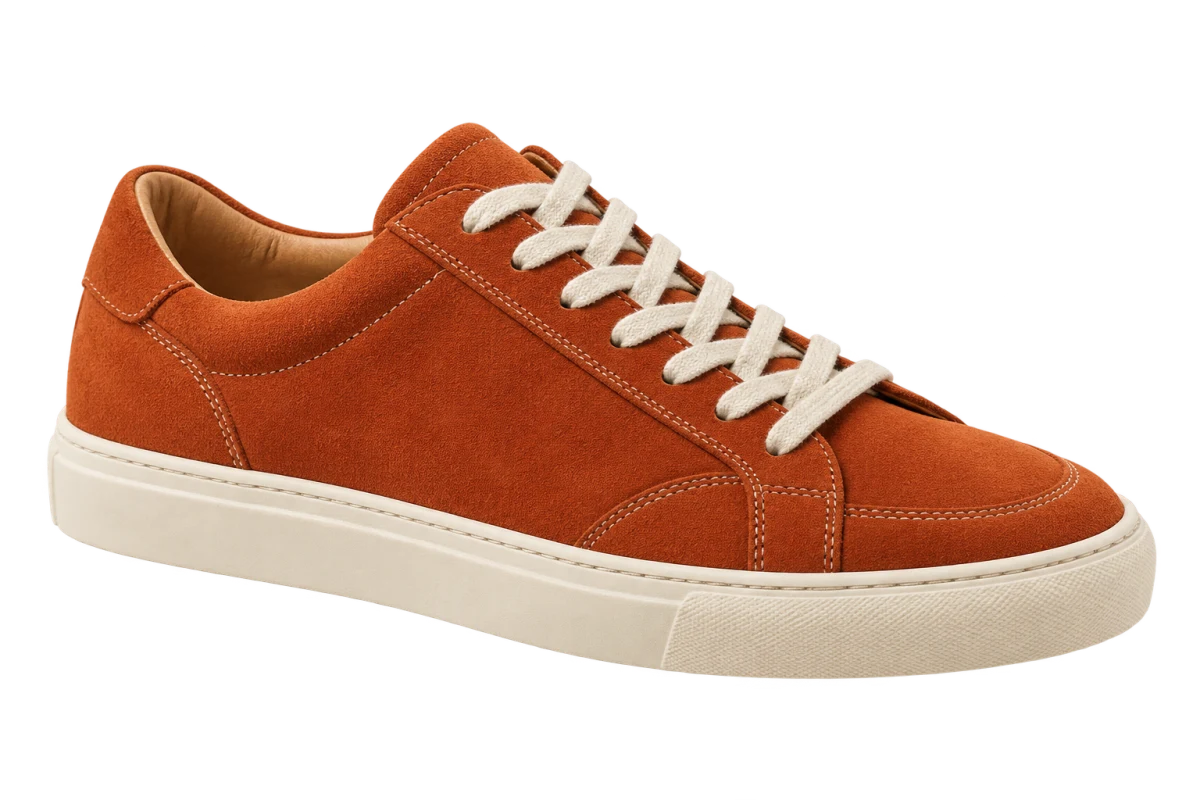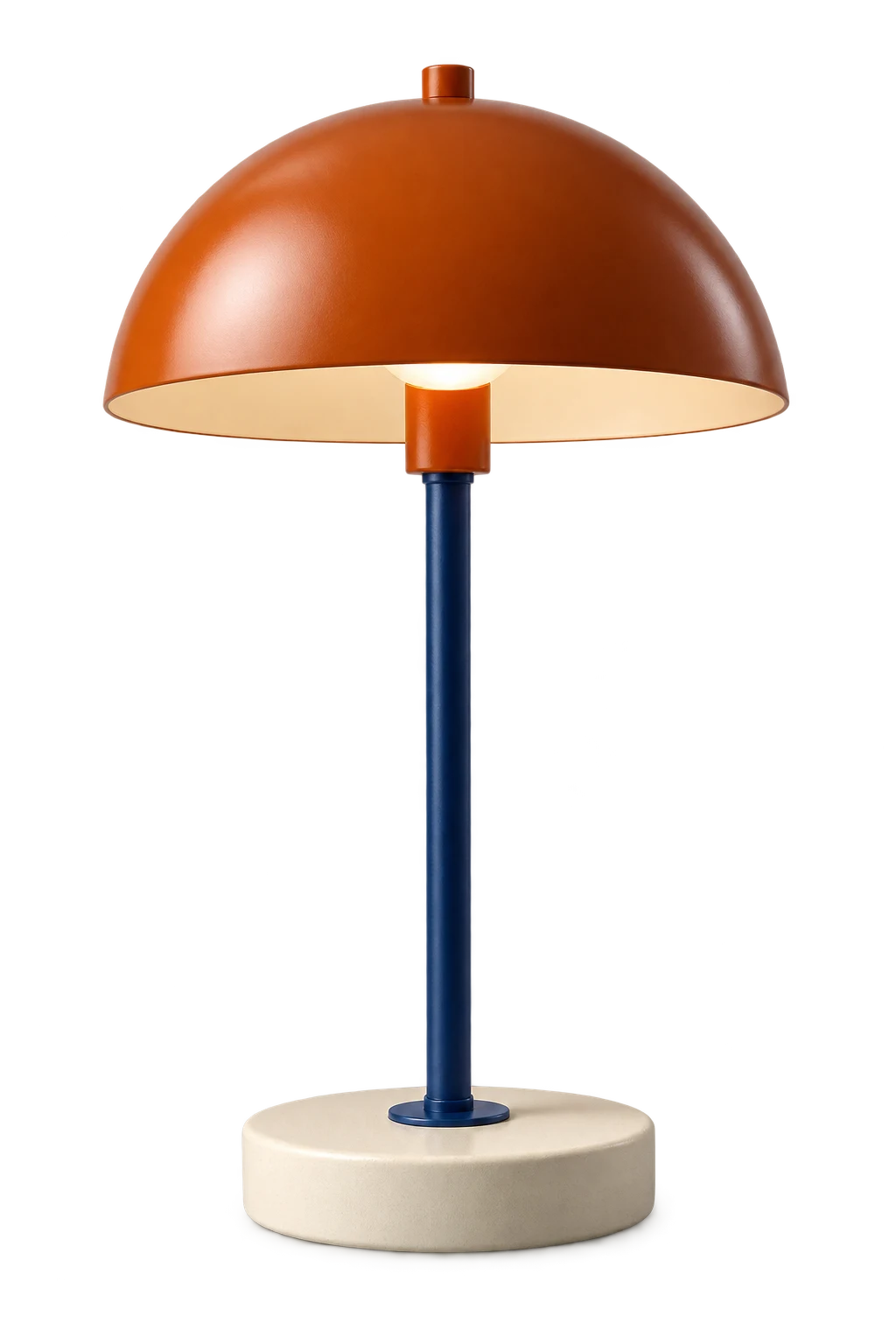
Decide what belongs in the picture
A gift guide brings together options; a bundle image shows what is included in one offer. Decide which one you are making before arranging the products. A decorative extra can confuse the reader if it looks as though it comes with the purchase.
For a small desk-accessory selection, you might use a lamp, notebook and pen. Give each item room to be recognized. If you need long descriptions or several detail views, split the content across more than one image instead of shrinking everything to fit.
Get transparent versions of the products
Use product images supplied or approved for your content. Choose clear originals with reasonably compatible lighting and angles. Background removal will isolate the objects, but it will not relight them or turn a side view into a front view.
With ClickCutout, set up image access and Google sign-in, choose PNG, then right-click a web image and copy or download the cutout. Paste into a compatible editor or insert the downloaded file. Repeat for the products you selected. If your files are already in an editor with background removal, you can prepare them there instead.
Arrange the cutouts on an open canvas
Start from the canvas shape you need for the intended placement. Put the background color down first, then leave space for the heading and product labels. Use freely positioned image layers when you want overlapping cutouts. A photo-grid template is useful when separate rectangular cells suit the design.
For the desk selection, place the lamp as the tallest object and keep the notebook and pen nearby. Avoid covering the parts that identify a product, such as the notebook cover or lamp shade. Check the visible object sizes instead of making all the image boxes equally wide.
Compare the arrangement before adding decoration
Duplicate the design and test a second arrangement with the same products and copy. For example, compare a loose cluster with a clear row. Keep the background the same while deciding which layout reads better. Then try a different color on the chosen version.
View the collage at the size someone will actually see it on a phone or page. Labels that look fine when you are zoomed in may disappear at that size. If an object needs a shadow to sit convincingly in the composition, add and adjust that shadow in the design editor.
Export the design and keep the reusable parts
Check product names, links and any displayed prices against the source before sharing. Keep useful details as readable text alongside the image when possible, especially in a buying guide. Describe the selection in the image’s alternative text where your publishing tool provides it.
Keep the individual transparent PNGs and the editable collage. Export the complete design in the format and dimensions required by its destination. A finished post with a solid background can be JPEG; that does not mean you should replace your transparent source cutouts with JPEGs. Review marketplace requirements separately if you intend to use it in a listing.